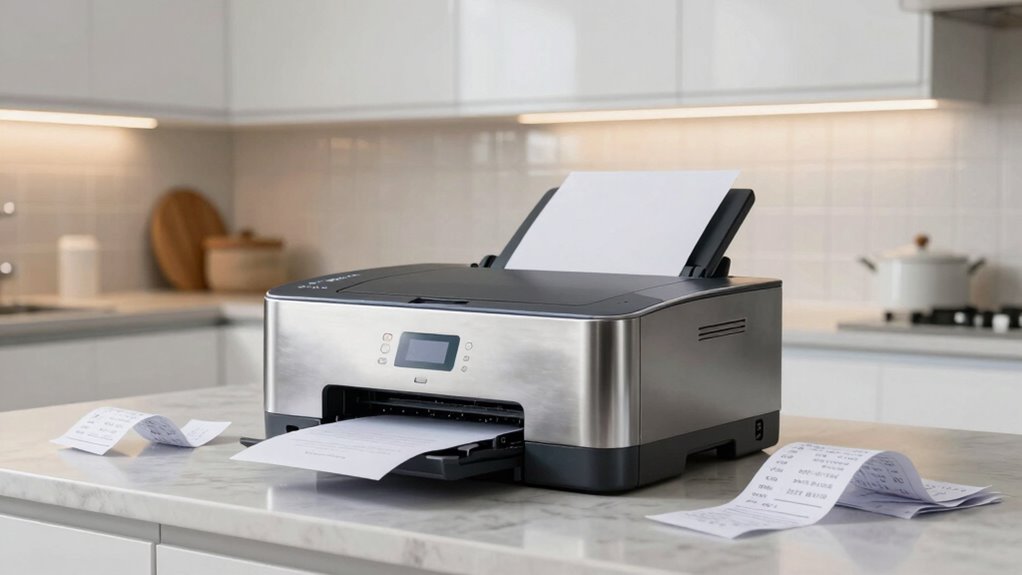

Kitchen printers often fail due to predictable issues like weak Wi-Fi signals, paper jams, or environmental factors. To avoid this, guarantee your network is strong and secure, regularly clean and maintain your printer, and use recommended paper to prevent jams. Keep the printer in a stable, well-ventilated spot away from interference. Staying proactive with these steps can help maintain smooth operation—discover more tips to keep your printer running reliably.
Open a free Amazon Business account
Business pricing, bulk buying and tax-exempt orders.
As an affiliate, we earn on qualifying purchases.
Key Takeaways
- Ensure strong Wi-Fi signals in the kitchen by minimizing interference and securing the network.
- Use recommended paper types and keep the paper tray clean to prevent jams and loading issues.
- Regularly clean internal components and maintain environmental conditions to avoid dust and heat damage.
- Keep firmware and drivers updated for stable connectivity and printer performance.
- Monitor error messages and perform routine maintenance to address issues proactively and prevent failures.
Kitchen printers often fail for reasons you can see coming, making them a common headache in busy restaurants. When your printer suddenly stops working during a rush, it’s frustrating, but many issues are predictable and preventable. One of the most common problems revolves around wireless connectivity. If your printer relies on Wi-Fi and the network signal drops or becomes unstable, the printer won’t receive orders or send receipts. To avoid this, verify your wireless network is strong and reliable in the kitchen area. Regularly check the signal strength, minimize interference from other devices, and consider using a dedicated network for your printers. Updating firmware and drivers can also improve connectivity, reducing the chances of disconnects during critical moments. Improving Wi-Fi reliability is essential to ensure your printers stay connected during busy hours. Additionally, ensuring your network is secured properly can prevent unauthorized access that might disrupt communication. Proper network management, including network segmentation, can help isolate printer traffic, preventing interference from other devices.
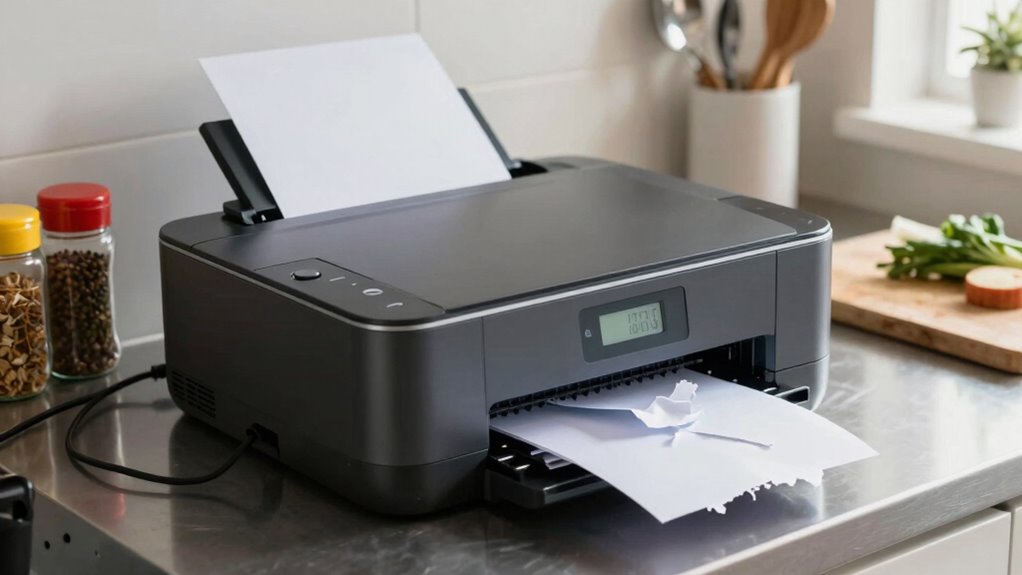
Paper jams are another frequent culprit behind printer failures. They often happen when paper is loaded improperly, or if the paper quality isn’t suitable for your printer. Paper jam troubleshooting starts with turning off the printer and carefully removing any jammed paper, being gentle to avoid tearing it or damaging internal components. Always use the recommended paper type and size specified by the manufacturer. Keep the paper tray clean and free of dust or debris, which can cause misfeeds. Regular maintenance, like cleaning rollers and checking for worn parts, helps prevent jams before they happen. If jams persist, consult the printer’s manual or support resources to identify specific causes, such as misaligned rollers or obstructions inside the device. Routine inspections can help catch issues early before they escalate into major failures. Neglecting these routine checks can lead to more costly repairs or replacements over time.
In addition to these issues, neglecting routine maintenance can lead to more frequent failures. Dust, grease, and food particles can accumulate inside the printer, affecting performance and causing errors. Schedule regular cleanings to keep the internal components free of debris. Also, ensure your printer is placed in a well-ventilated, stable location—exposure to heat, humidity, or vibrations can impact performance. Proper placement can also help prevent environmental damage that may cause malfunctions over time. Lastly, always keep an eye on the printer’s status indicators and error messages. Learning what they mean allows you to troubleshoot quickly rather than wasting time guessing. Keep spare paper and replacement parts on hand, so you’re ready when issues arise. By maintaining a proactive approach—checking wireless connections, practicing paper jam troubleshooting, and performing routine cleanings—you can substantially reduce unexpected printer failures. This way, your kitchen runs smoothly, orders get printed on time, and stress levels stay manageable during busy hours.
As an affiliate, we earn on qualifying purchases.
Frequently Asked Questions
How Often Should I Clean My Kitchen Printer?
You should clean your kitchen printer at least once a week as part of your cleaning schedules. Regular printer maintenance, like wiping down the exterior and clearing paper jams, helps prevent ink buildup and dust accumulation that can cause failures. If you notice print quality issues or paper jams more frequently, increase cleaning frequency. Keeping to a routine guarantees smooth operation, minimizes downtime, and extends your printer’s lifespan.
What Are the Best Printer Brands for Kitchens?
You should consider brands like Epson, Brother, and Zebra for kitchens, as they excel in printer durability and ink compatibility. These brands build printers that withstand the heat, moisture, and frequent use typical in busy kitchens. They also guarantee ink compatibility with high-quality, smudge-resistant inks, reducing downtime. By choosing these brands, you get reliable performance, easy maintenance, and printers designed specifically for the demanding kitchen environment.
Can Kitchen Printers Connect to Smartphones?
Yes, kitchen printers can connect to smartphones, thanks to wireless connectivity options like Wi-Fi or Bluetooth. To guarantee smooth communication, check the printer’s compatibility with your phone’s operating system. Most modern kitchen printers support wireless connectivity, making it easy to send orders directly from your smartphone. Just verify the printer’s compatibility and setup instructions to avoid connection issues, and you’ll streamline your kitchen workflow effortlessly.
How Do I Troubleshoot Paper Jams Quickly?
To troubleshoot a paper jam quickly, first turn off the printer and carefully open the paper compartment. Check for common paper jam causes like torn paper or misaligned sheets. Remove any jammed paper gently, avoiding tearing. Follow troubleshooting tips such as cleaning rollers and ensuring paper is properly loaded. Once cleared, close the compartment securely, power on the printer, and test. Regular maintenance prevents future jams and keeps your kitchen printer running smoothly.
What Is the Ideal Placement for a Kitchen Printer?
Position your printer in a practical, protected place—preferably near the pass-through, avoiding heat, humidity, or direct sunlight. Prioritize user accessibility, making it easy for staff to quickly retrieve orders. Regular printer maintenance prevents jams and malfunctions. Keep cords untangled and within reach, and guarantee the area stays clean and clutter-free. Proper placement maximizes efficiency, minimizes downtime, and keeps the kitchen running smoothly, serving speedy, superb service every time.
thermal receipt printer for restaurant
As an affiliate, we earn on qualifying purchases.
As an affiliate, we earn on qualifying purchases.
Conclusion
To keep your kitchen running smoothly, remember that printer issues are like stubborn weeds—you can’t just ignore them and hope they disappear. Regular maintenance, choosing reliable equipment, and quick troubleshooting can save you a lot of frustration and keep orders flowing seamlessly. Think of it as tending a garden: with a little care and attention, your kitchen printers will thrive, ensuring your team can serve up dishes without unnecessary delays or breakdowns.
printer paper for kitchen printer
As an affiliate, we earn on qualifying purchases.
As an affiliate, we earn on qualifying purchases.
As an affiliate, we earn on qualifying purchases.
Flea & tick season Picks
flea and tick prevention
As an affiliate, we earn on qualifying purchases.